
All RealData products include an automated process to print reports. You can print reports via the RealData menu located in the top Excel menu.
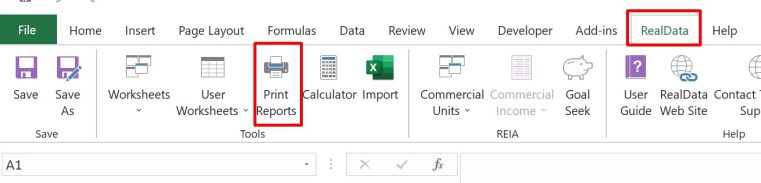
You MUST enable macros to view the RealData menu and to activate the printing routines. Learn more about enabling macros in this knowledgebase post.
When you click on “Print Reports,” a new window will appear providing you with options to select reports, to choose print options and to choose whether to print to PDF or a physical printer. Below is a print window for the REIA Express program.
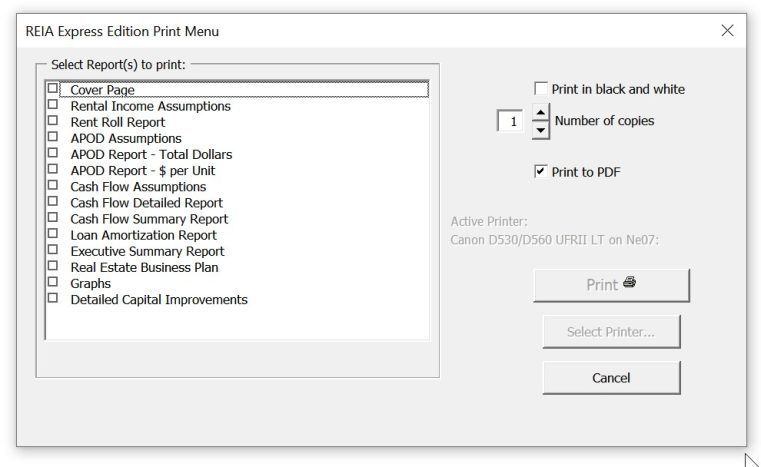
Select your reports, adjust the other settings and then click the Print button. If you are printing to PDF, another window will appear providing you with the option to name the report file and select its destination.
Note! If you click on Print Reports and you get no response, this likely means that macros are not enabled. See the enable macros article for more information.