
macOS users may encounter a file which you cannot save. You will also notice that the file name (visible at the very top center of your screen) ends with “(read-only)”
Open Finder and browse to the location of the file, and single click to highlight the file name. Click on File > Get Info. If you have a laptop, you can also use two fingers on your touchpad to bring up the context menu for the file.
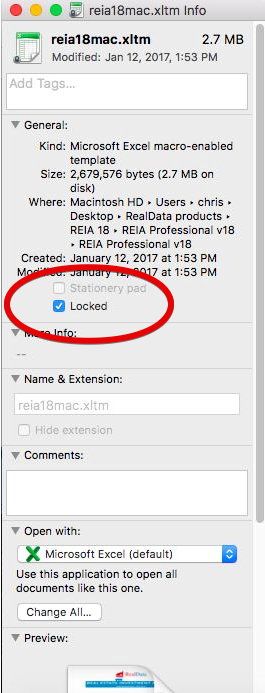
At the top of the Get Info window, look for the checkbox next to “Locked” – deselect this checkbox to remove the read-only status.
Important Note! We have found that if you use a special character in the file name (for example, a dollar sign, backslash, asterisk, etc) then this may force read-only status on a file. Remove these special characters from the file name.