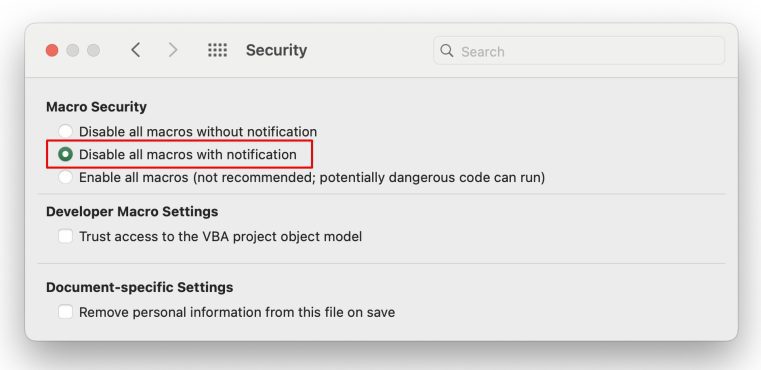
When you open a RealData file in Excel, you typically see a yellow horizontal bar that says, “Security Warning Macros have been disabled”
You MUST click the “Enable Macros” or “Enable Content” button to utilize all features in our products.
Sometimes you will not see this warning which can mean one of two things:
– Either macros are automatically enabled for this file, or,
– Macros are automatically disabled.
How to Test if Macros are Enabled #
Click any gray button on any worksheet within the RealData product. Look to the General or General Settings worksheet for several such buttons. If you get a message saying that macros are disabled, you have your answer.
Check Your Excel Macros Setting #
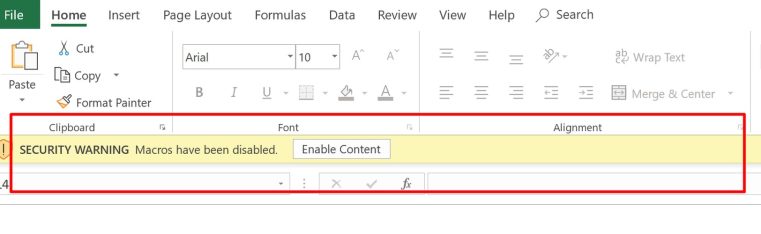
In new versions of Excel, you can find the macro security setting by clicking on “File” in the upper left corner of Excel, then look down to the bottom left corner of the green column and click on “Options.” The Excel Options window appears. Click on Trust Center in the left column. Now click on the Trust Center Settings button. A new window opens over top of Excel Options. Click on Macro Settings on the left, center. On the right side, note the four Macro Setting options. Be sure to select the second option which is “Disable all macros with notification.” Click OK in the lower right. Click OK again.
Did You Accidentally Delete the Macro Code? #
The correct file format to save RealData products is .xlsm file type, or macro enabled workbook.
It is possible that you saved the file in the .xlsx format which strips the macro code from the file. In this case not only may the RealData menu be absent but all buttons and macro functions within the product will not work. If you have REIA Professional or Personal Financial Statement, you can use our Import feature to copy your data to a new blank template.
Macintosh Users #
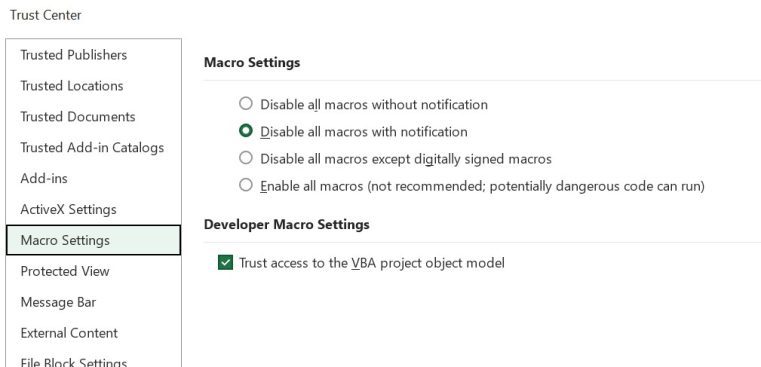
Mac users also must enable macros when opening RealData products to make use of all features. When opening a file, you will get a window that first pops up asking whether you want to enable macros. Click the lower gray “Enable Macros” button. Don’t see this window? – keep reading..
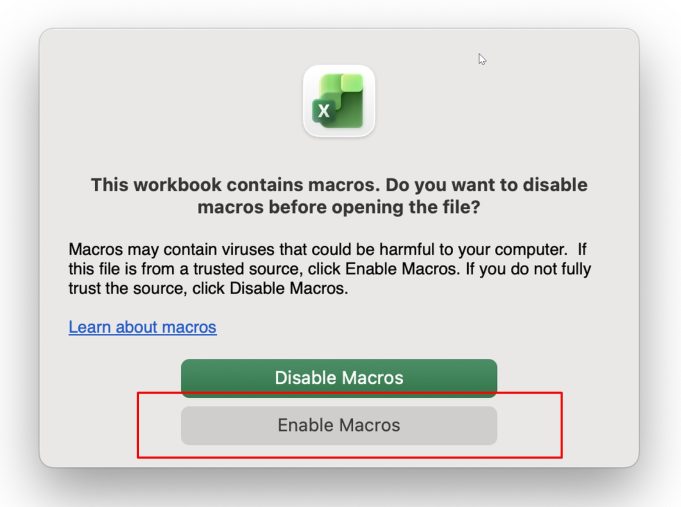
If you do not see this window when opening RealData files, be sure to first check your macro security setting in Excel. First click on “Excel” in the upper left, next to the Apple icon. Now click on “Preferences.” Now click on “Security” – (this will vary depending on the version of your operating system. Select the middle setting under Macro Security which is “Disable all macros with notification” – see the graphic below.
Still not seeing the Enable Macros window on your Mac? It is possible that you previously saved the file in the .xlsx format instead of the .xlsm format. See the “Did You Accidentally Delete the Macro Code?” section above.